Co-browsing software, or cobrowsing, with consent: show the buyer the answer on screen.
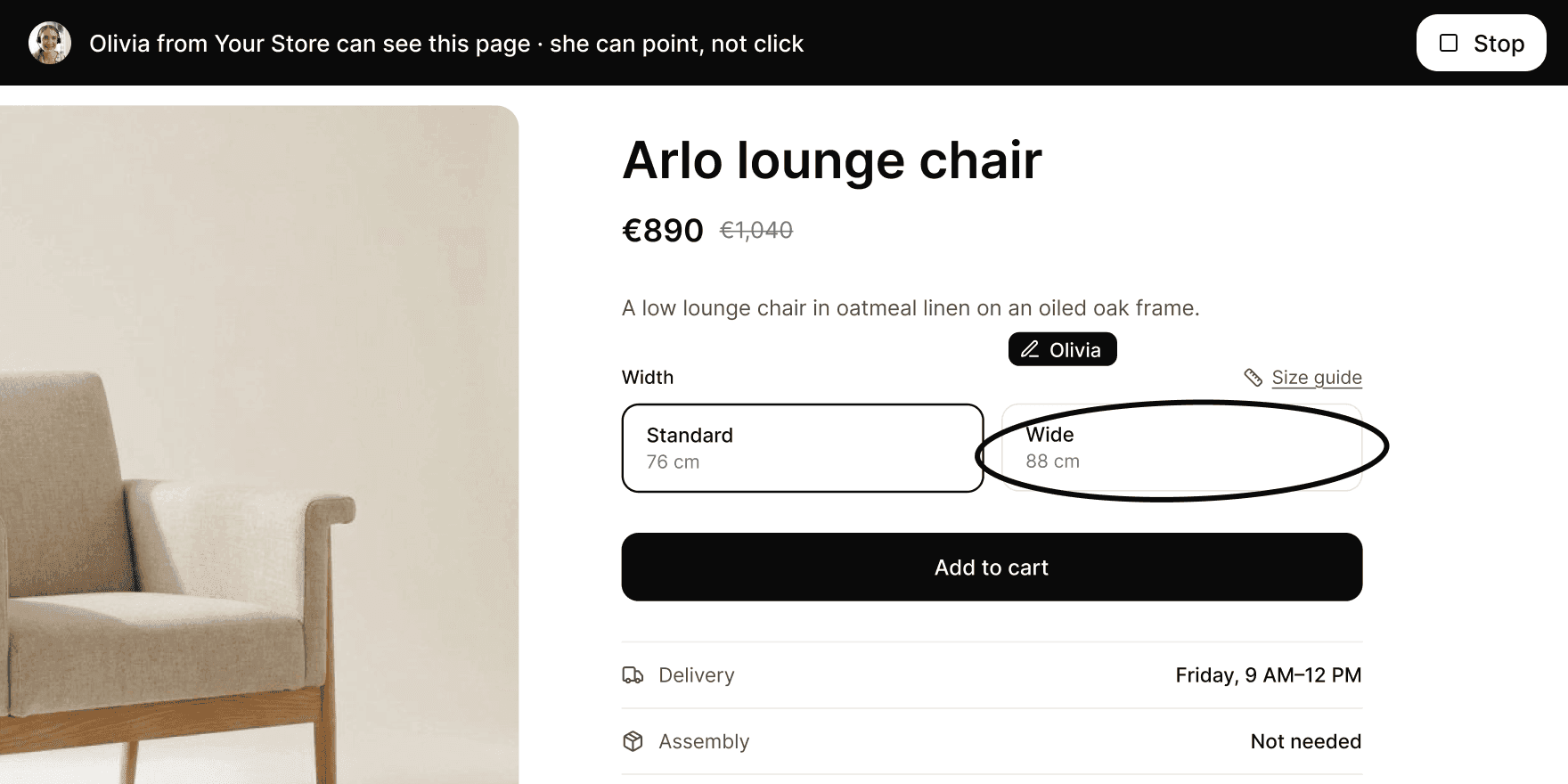
Once the buyer accepts, your sales team sees their page and points at the answer. It never clicks, types or sees a password.
Free 30-day trial. No card, no automatic charge.


Co-browsing vs screen sharing.
Co-browsing is a live, shared view of a web page. Someone from the website's team sees the visitor's page and guides them through it, in their own browser. In GreetDock it starts after the visitor accepts, shares only that tab and hides card and password fields. Your team points; the visitor does the clicking and typing.
- What is shared
- Only the tab where the visitor accepted
- Who is in control
- The visitor clicks and types. Your team points.
- Consent
- A request first, a bar for the whole session, Stop at any time
- Sensitive fields
- Card and password fields show as dots
- What is shared
- A whole screen, a window or a tab
- Who is in control
- The person sharing. Some tools add remote control.
- Consent
- Started by the person sharing, often in a meeting app
- Sensitive fields
- Shown as they are, unless the sharer hides them
See them side by side · 4 differences
Co-browsing in GreetDock: Only the tab where the visitor accepted
Screen sharing: A whole screen, a window or a tab
Co-browsing in GreetDock: The visitor clicks and types. Your team points.
Screen sharing: The person sharing. Some tools add remote control.
Co-browsing in GreetDock: A request first, a bar for the whole session, Stop at any time
Screen sharing: Started by the person sharing, often in a meeting app
Co-browsing in GreetDock: Card and password fields show as dots
Screen sharing: Shown as they are, unless the sharer hides them
GreetDock offers both. Screen sharing runs inside a call, from either side, after the other side accepts. Co-browsing shares only the visitor's page, after the visitor accepts.
Five steps, and the visitor controls each one. From the request to Stop.
Step 1 of 5: Your team asks
Your team asks
Your teamA request appears in the widget: who is asking, and that they want to see the page the visitor is on. Nothing is shared yet.
Request sent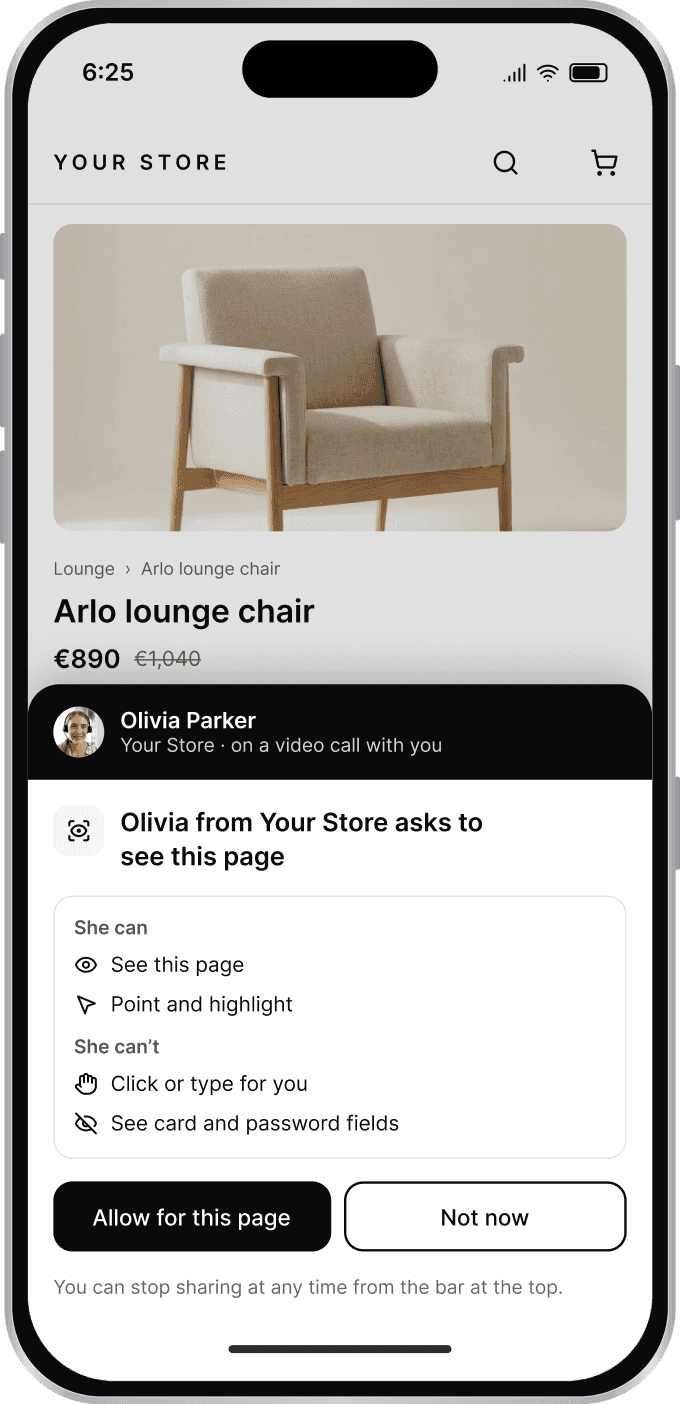
The visitor reads what is allowed
VisitorThe request lists what your team can do (see the page, point and highlight) and what it cannot (click, type, see card and password fields).
Reading the request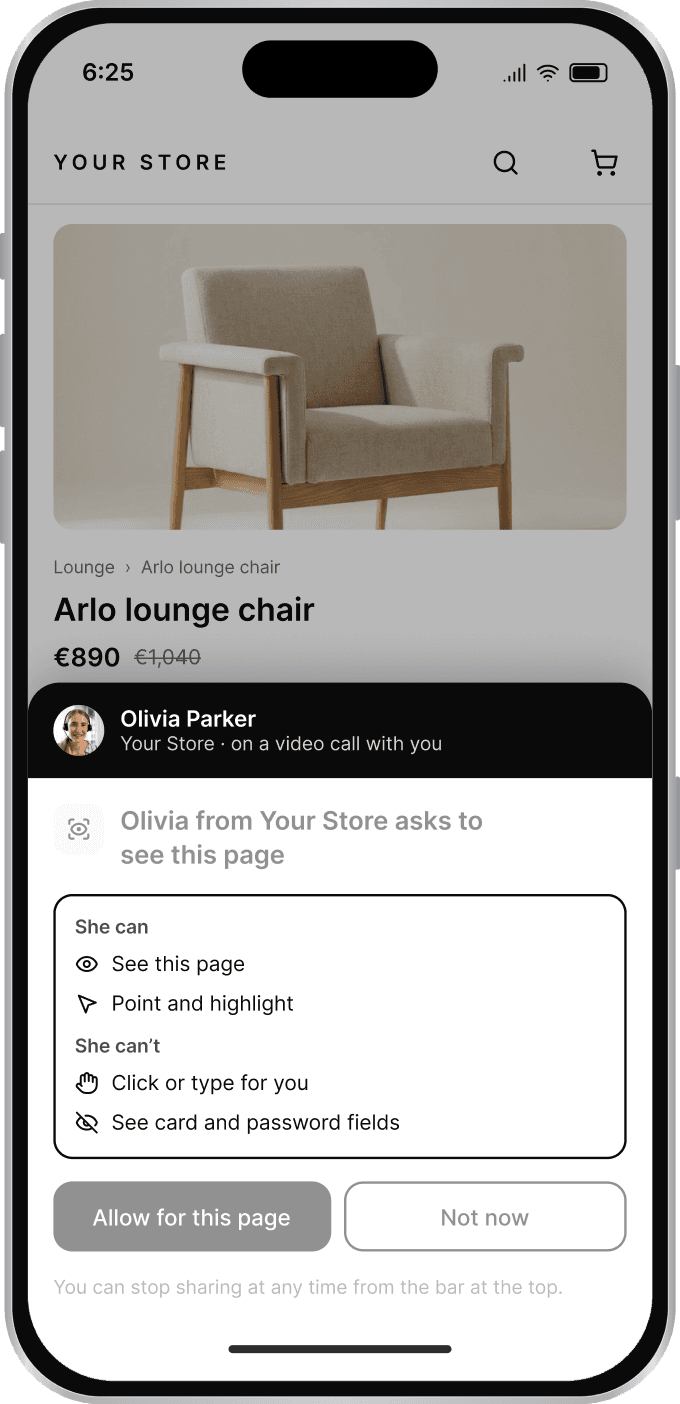
Sensitive inputs are hidden
BothCard and password fields are hidden from your team. Other tabs and desktop apps are never shared.
2 fields hidden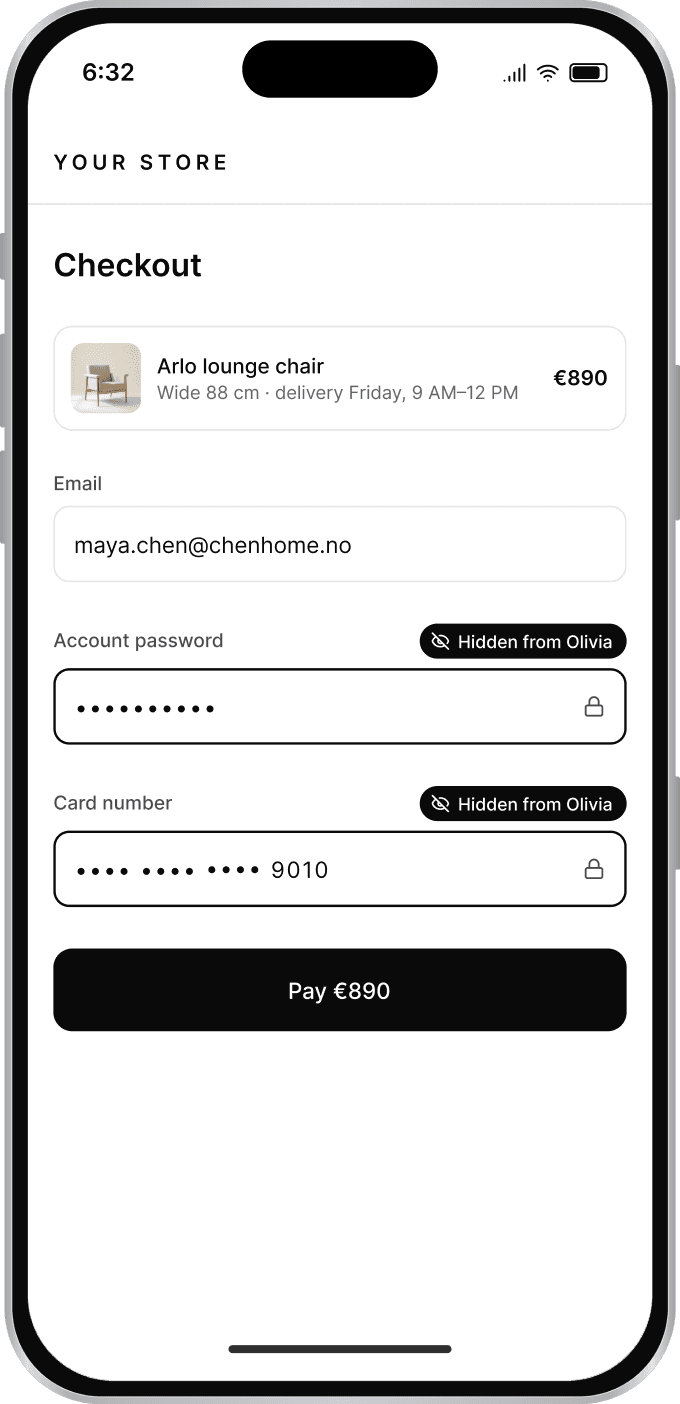
The visitor accepts, sharing starts
VisitorA bar stays at the top of the visitor's page for the whole session, so it is always clear the page is shared.
Sharing · bar visible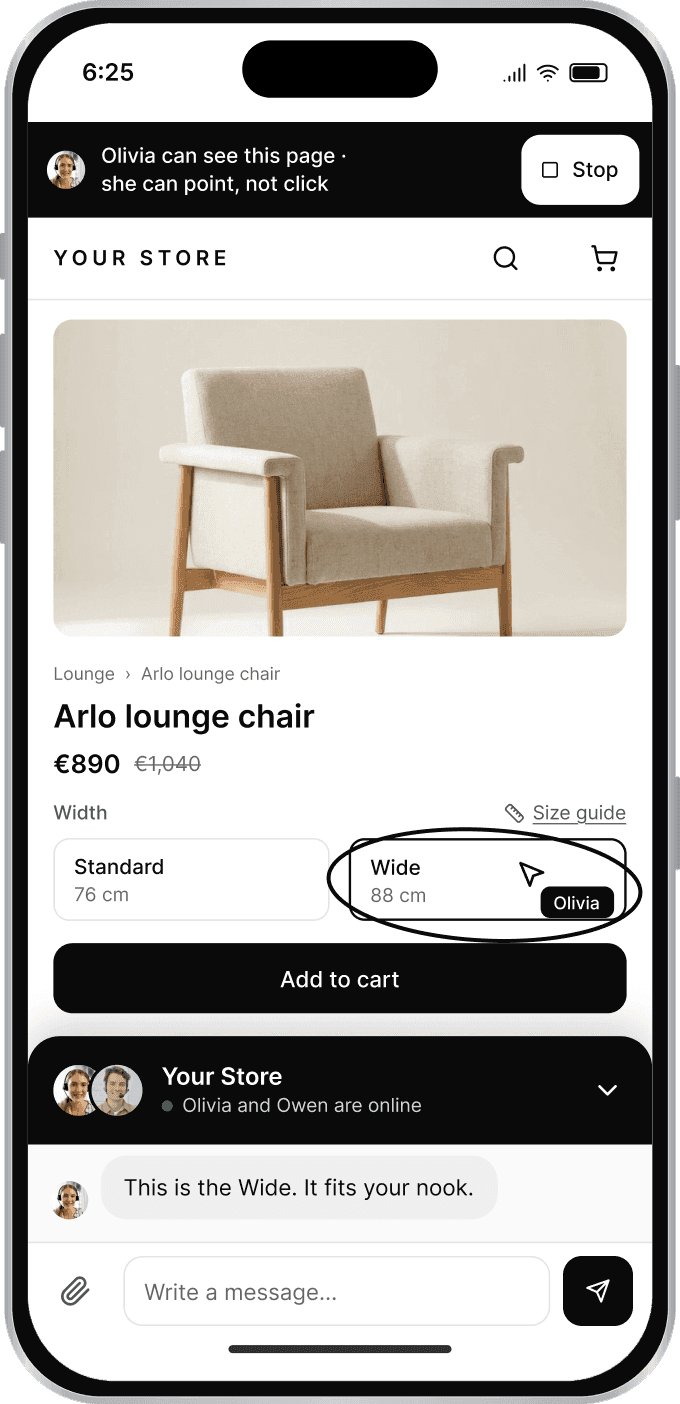
The visitor can stop at any moment
VisitorOne tap on Stop ends sharing, and your team can no longer see the page. The conversation continues as chat.
Sharing ended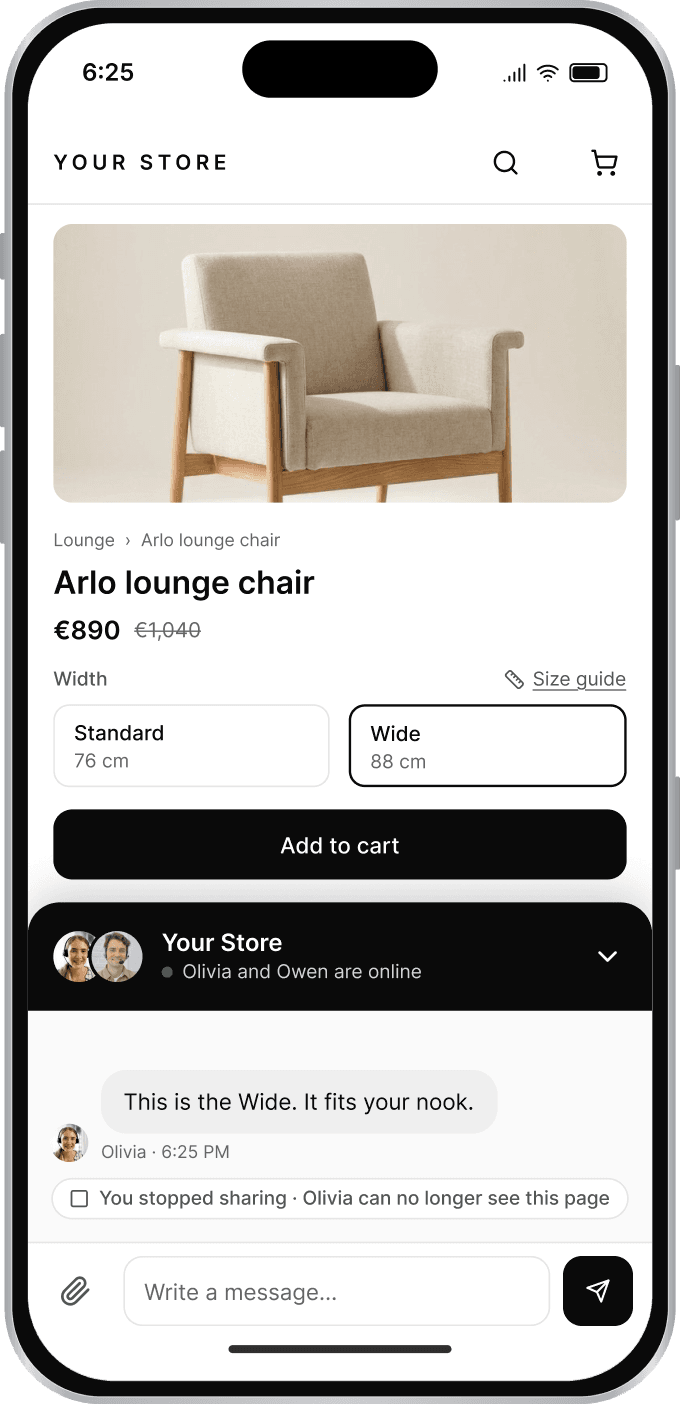
Pointing, up close. And the inputs your team never sees.

- Card and password fields hidden
Card and password fields show as dots in your team's view. Your team never sees the values.
- Starts during a call
Ask from the call when showing the page is faster. It needs its own yes.
Calls - No extension, no download
The widget script on your site is enough. Visitors install nothing.
- Only this page
Only the tab where the visitor accepted. Other tabs, other apps and the desktop are never shared.
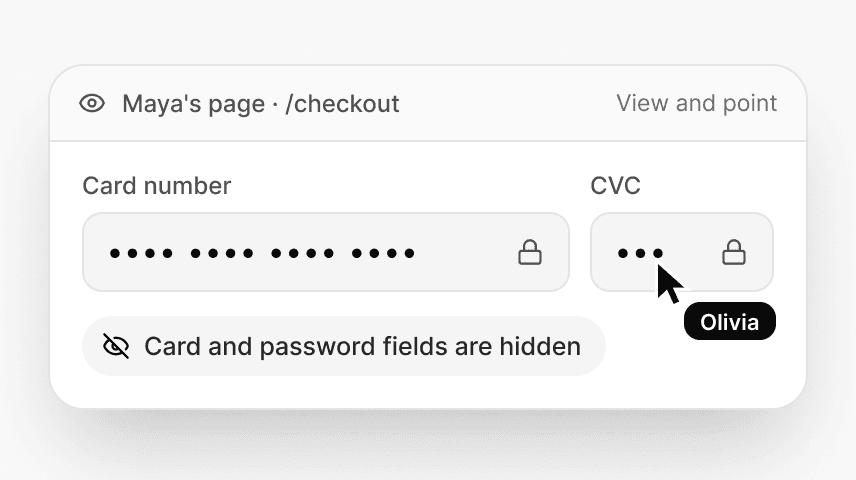
What stays hidden. And how to hide your own fields.
Before your first session
- 01Masked automatically
Password fields, card fields with standard autocomplete values, and frames from other domains, such as payment providers.
- 02Mark your own private fields
data-greetdock-maskPart of the betaAdd it to fields such as ID numbers or account balances. The layout stays visible; the value does not.
- 03Test it on your own pagesInbox → Ask to see this page
Start a session from your inbox with a teammate as the visitor, and check that every marked field shows as dots.
Marking your own fields is part of the beta. Test it before you rely on it for regulated data.
Book a call with our teamWhat the visitor controls
- Nothing is shared until they tap Allow for this page
- A bar stays on screen for the whole session
- Stop ends sharing with one tap
- Your team cannot click, type or navigate for them
Before you share a page. What teams and reviewers ask.
Next in the flow
All product pages: Team chat, Cloud, Intelligence, Booking & callbacks, Pop-ups & forms
Comparing tools? GreetDock vs Re:amaze, GreetDock vs Olark, GreetDock vs Tidio