Co-browsing vs screen sharing: how to choose
Start with what your team needs to see and what the visitor should keep private. A practical comparison for website support, onboarding and sales conversations.
A customer says, “I cannot find the option you mean.” You need a shared view, but how much of their screen should your team see? Can you point at the option? Can you change it? What happens to the other information on the page?
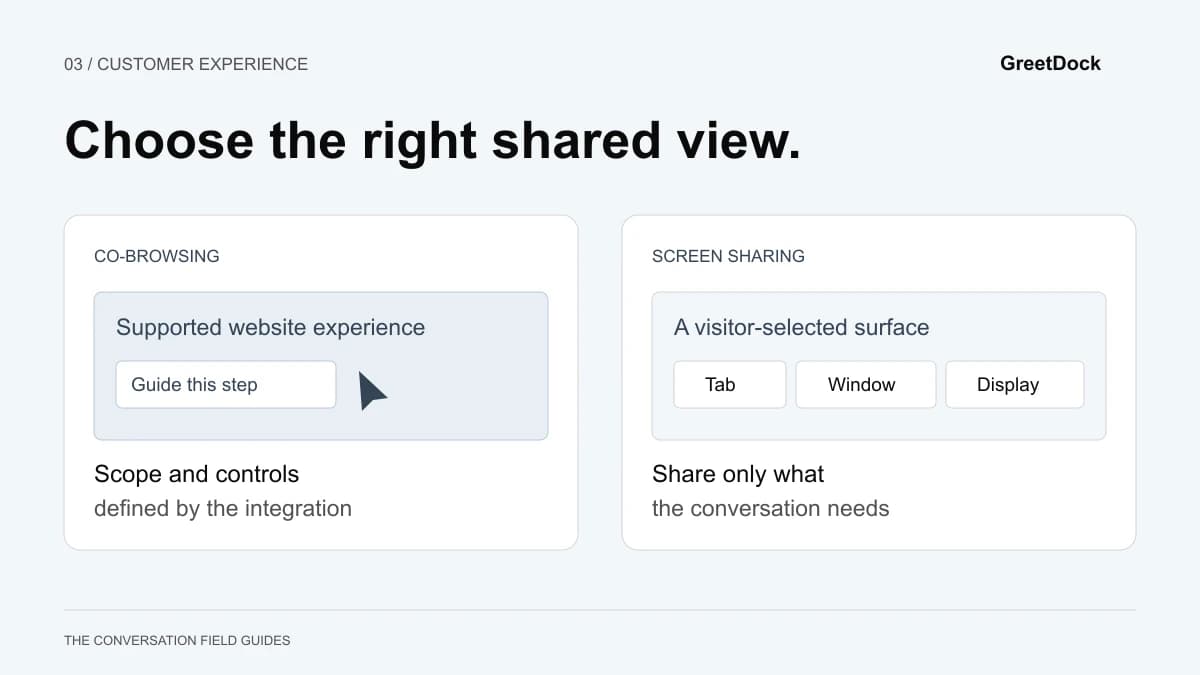
Co-browsing helps people work together within a supported web experience. Screen sharing shows a user-selected visual surface, such as a browser tab, application window or display. The right choice depends on the scope of the problem and the controls of the particular tool.
Neither label tells you everything about permissions, masking or remote control. This guide separates those questions so a sales or support team can choose and test a workflow before offering it to visitors.
Understand the two sharing models
Co-browsing: guidance inside a supported experience
Website co-browsing usually requires an integration on the site or application being supported. It lets a teammate see the relevant experience and guide the visitor through it. The precise implementation, supported content and interaction tools vary by provider.
Some products support remote interaction. Others deliberately limit the agent to viewing and pointing. Masking rules also differ. Ask what the product does on your pages instead of assuming a category-wide guarantee.
In GreetDock's co-browsing, the visitor accepts a request before the page is shared. The team can use a pointer, spotlight and pen. It cannot click, type or navigate for the visitor. Sensitive input values, other tabs and desktop applications are not shared, and the visitor has a visible stop control.
Those are GreetDock's documented boundaries, not a definition of every co-browsing product.
Screen sharing: a view of a selected surface
Screen sharing is useful when the task spans surfaces outside the website you operate. A customer may need to show a desktop application, an external service or a presentation.
Browser screen-capture interfaces let the user choose what to share from the available surfaces. The available choices and support vary by browser and environment. MDN's screen-capture documentation explains the user-selection and permission model.
Screen sharing does not inherently grant remote control. If a tool allows the agent to operate the customer's computer, that is an additional capability to evaluate separately.
It is also inaccurate to say screen sharing always exposes the entire desktop. Sharing a single tab is different from sharing a full display. The operational risk depends on what was selected, what appears there and what controls the product provides.
Compare scope, control and effort
| Decision | Website co-browsing | Screen sharing |
|---|---|---|
| What needs to be visible? | A supported site or application experience | A selected tab, window or display, depending on the tool and browser |
| Who can act? | Product-dependent; GreetDock is view-and-point only | Usually the person sharing; remote control is a separate feature |
| What protects sensitive content? | Product-specific masking and scope controls that need testing | Surface selection and any additional redaction controls the product provides |
| What setup is required? | Typically an integration on the supported site | Depends on the product; browser-based sharing can work without a separate installed app |
| What if the issue is in another application? | It may be outside the supported scope | Often a reason to choose screen sharing instead |
| How does the visitor stop? | Verify the persistent stop control and what it ends | Verify the product and browser controls and the surface they stop sharing |
This is a selection framework, not a vendor feature ranking. Test the exact product, browser and workflow you plan to use. “No download”, “masked” and “works on mobile” each need a concrete demonstration.
Choose by the job the visitor is doing
Finding a setting on your website
The visitor is already on a page you operate, but your written instructions are not helping. Co-browsing can be a good fit because you need to orient them within that page, not inspect their wider desktop.
Ask to share, point at the setting and let the visitor make the change. Check that it had the expected effect. If several visitors cannot locate the same control, fix the page or the documentation as well; repeated assisted sessions are evidence of a design problem worth investigating.
Evaluating a product configuration
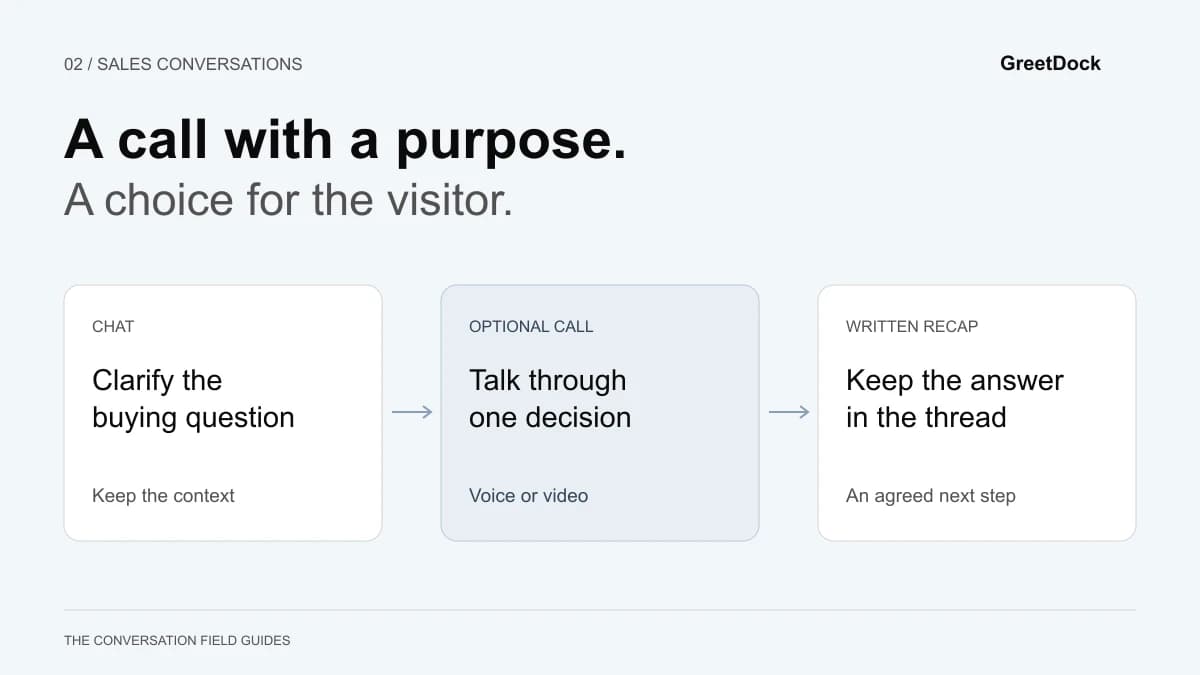
A buyer may understand the feature list but struggle to connect it to their workflow. A short conversation can clarify the requirement, followed by visual guidance if there is something on the page to show.
Keep the commercial decision with the buyer. In a view-and-point workflow, the agent can explain which option means what, while the buyer chooses and submits it. The guide to moving chat into a call covers asking separately for the call and for page sharing.
Troubleshooting an external tool
If the problem is in an application or website that your co-browsing integration cannot access, do not keep asking the visitor to return to your own page. Use a suitable screen-sharing tool, ask for a carefully scoped screenshot or continue with written diagnostics.
Before sharing, identify the smallest surface that contains the problem. Remind the visitor to avoid showing unrelated information. If your team cannot help with the external tool, make that limit clear before requesting access to a broader view.
Completing a sensitive step
Some tasks should remain private even during an otherwise helpful session. Think about credentials, payment information, private messages and customer records that appear as ordinary page text.
Do not assume masking an input protects every representation of its value. A confirmation panel, validation error or summary table can display information differently. Test those states with synthetic data. Pause sharing for steps you have not established can be handled appropriately.
Test the visitor's boundaries, not just the agent view
A demonstration can look convincing from the agent's side while leaving the visitor uncertain about what is happening. Evaluate both sides with two separate browser sessions and non-sensitive test data.
Before sharing
Check that nothing is visible to the agent before acceptance. Read the request as a first-time visitor: does it identify who is asking, what will be shared and what the agent can do? Decline the request and confirm the conversation can continue.
For screen sharing, test the surface selector. Confirm that the visitor can identify the intended tab or window and understands the difference from sharing a full display.
During the session
Try the real interface states your customers encounter: dropdowns, validation messages, responsive layouts, scrolling panels and embedded third-party content. Some surfaces may be unsupported or represented differently. Find that out before a customer needs help.
In your test page, include a password field, an ordinary text field and a confirmation summary. Confirm what appears on the receiving side for each, according to the product's documented policy. The purpose is to inspect actual behaviour, not to enter real private information as a test.
Check who can click, type, navigate and submit. If your requirement is “the visitor remains in control”, show that an agent cannot act on their behalf. A policy statement is useful, but a practical test establishes that the chosen workflow matches it.
After stopping
Use the visitor's stop control and attempt further interaction from the agent side. Confirm that the view stops updating and that pointer or interaction controls no longer affect the visitor's page.
Then reconnect and verify that permission is requested as expected. Understand which records remain afterwards. A conversation record, a screen recording and a call transcript are different artefacts; do not assume one implies the others.
Fit visual guidance into the rest of the conversation
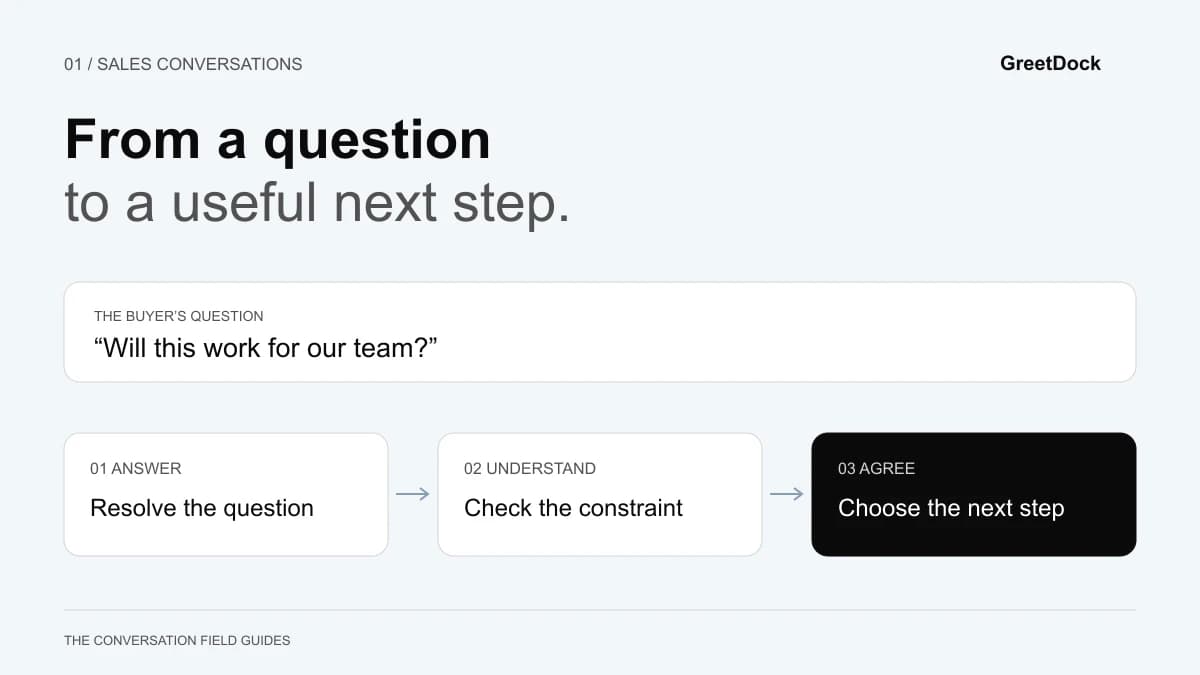
Start with the question, not with a sharing request. Ask the visitor what they are trying to do and where the instruction stopped making sense. You may discover that one sentence resolves the problem without a shared view.
When visual guidance is useful, describe its purpose: “Would you like me to point out the option on this page?” Explain the actual controls of your tool. Avoid saying “I’ll take over” if the product does not allow it, or if the visitor has only agreed to viewing.
Afterwards, leave a short written recap. Include the setting or step discussed, the action the visitor chose and any unresolved issue. This helps the next teammate continue without asking for another sharing session just to reconstruct what happened.
For a sales conversation, connect that recap to the buyer's decision. The live chat qualification playbook explains how to record a requirement and an agreed next step without turning support into an interrogation.
Where GreetDock fits
GreetDock combines live chat, browser calls and consent-based co-browsing in the visitor conversation. Its co-browsing is intended for guidance on the page: the team sees the accepted shared view and points, while the visitor keeps control. It is not a remote desktop tool.
Review the security page alongside your own requirements, and test the pages and devices your visitors actually use. If your main need is operating a customer's desktop application, that is a different workflow from GreetDock's documented co-browsing capability.
GreetDock is in private beta. If page-based guidance matches your use case, apply for early access with a description of the step where visitors get stuck. A useful evaluation starts with that specific task, a clear permission boundary and an observable definition of “resolved”.