What is live chat, and what a website conversation tool does
Live chat puts a person from your team in a small window on your website, answering while the visitor is still on the page. Here is how it works, what it is good for, and what to check before you choose a tool.
Live chat is a chat window on a website where a visitor types a question and a person on the company's team replies in real time. The visitor stays on the page while they talk. It runs through a small widget on the site and an inbox the team answers from.
That is the short answer to "what is live chat". Tools differ in how the two halves connect: who the visitor sees as available, what your team sees beside each message, and what happens when nobody is there. This guide covers how it works, the benefits, the alternatives and what to check in a tool.
What is live chat, and how does it work?
Live chat has two halves joined by a live connection. The visitor sees a widget on your page. Your team sees an inbox in its browser. A message typed in one appears in the other as it is sent.

The widget
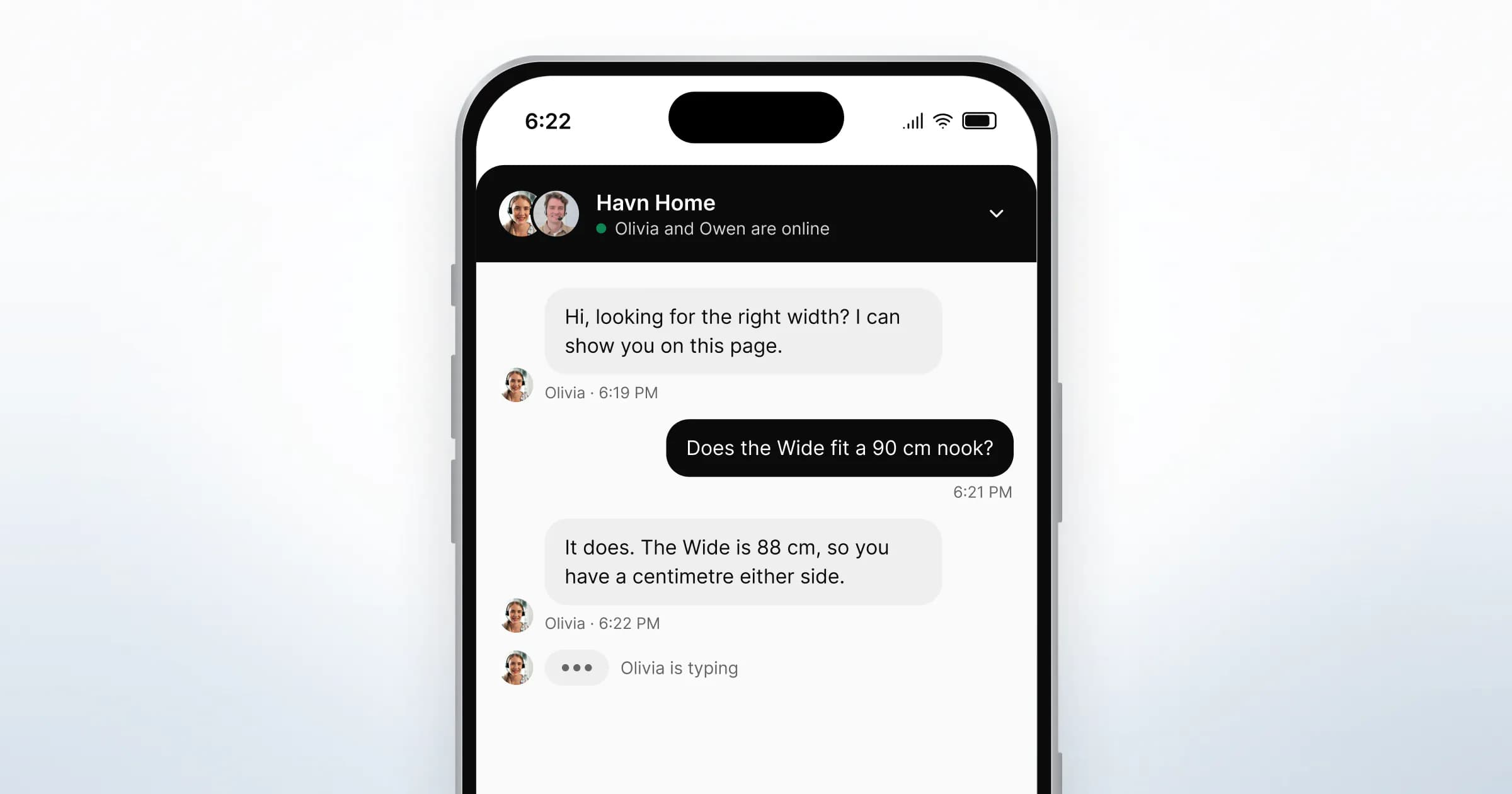
The widget is a launcher button in a corner of your site, and a chat panel that opens from it. A script tag on each page loads it. The panel carries the conversation, plus files and links either side can share.
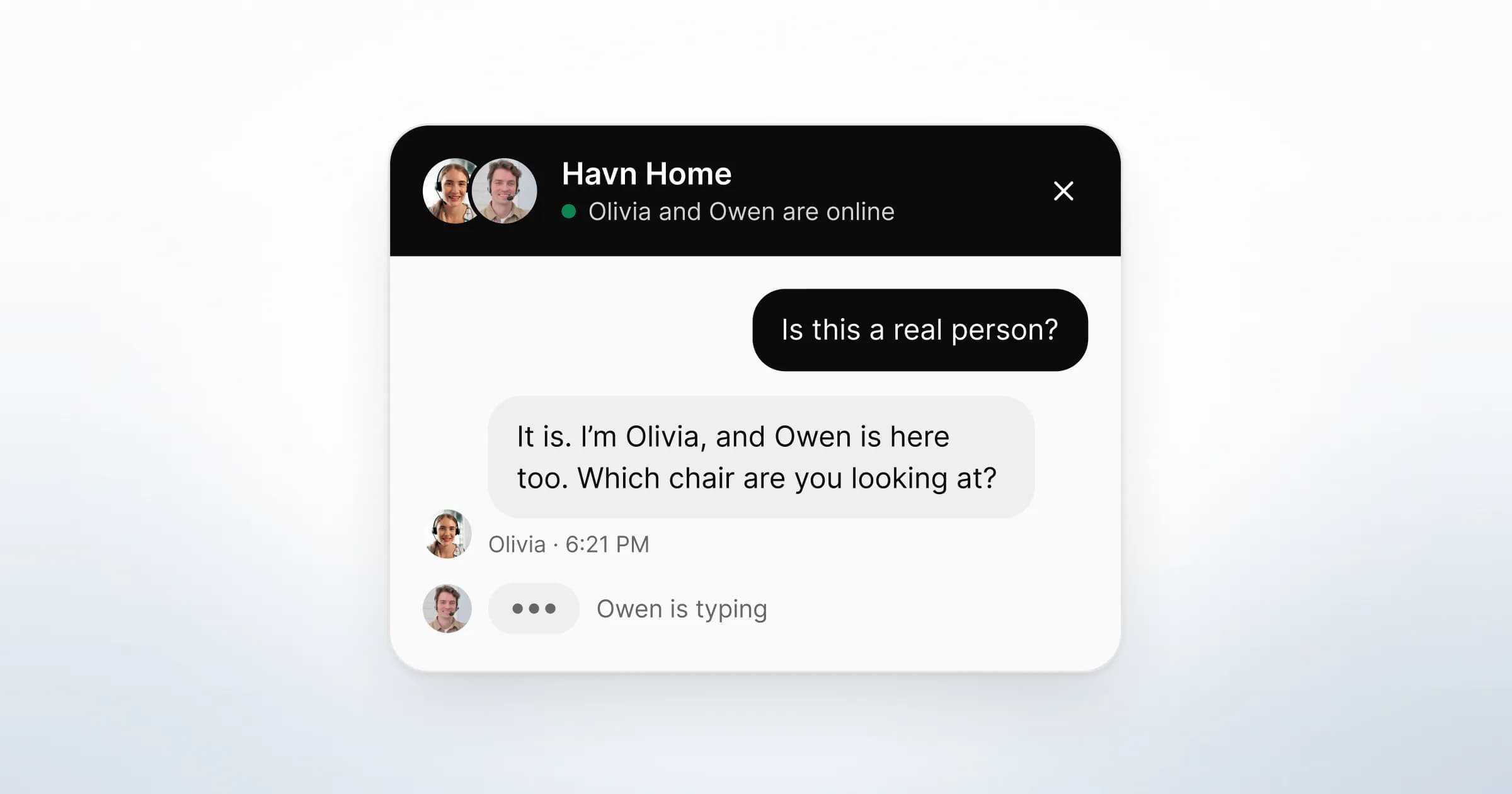
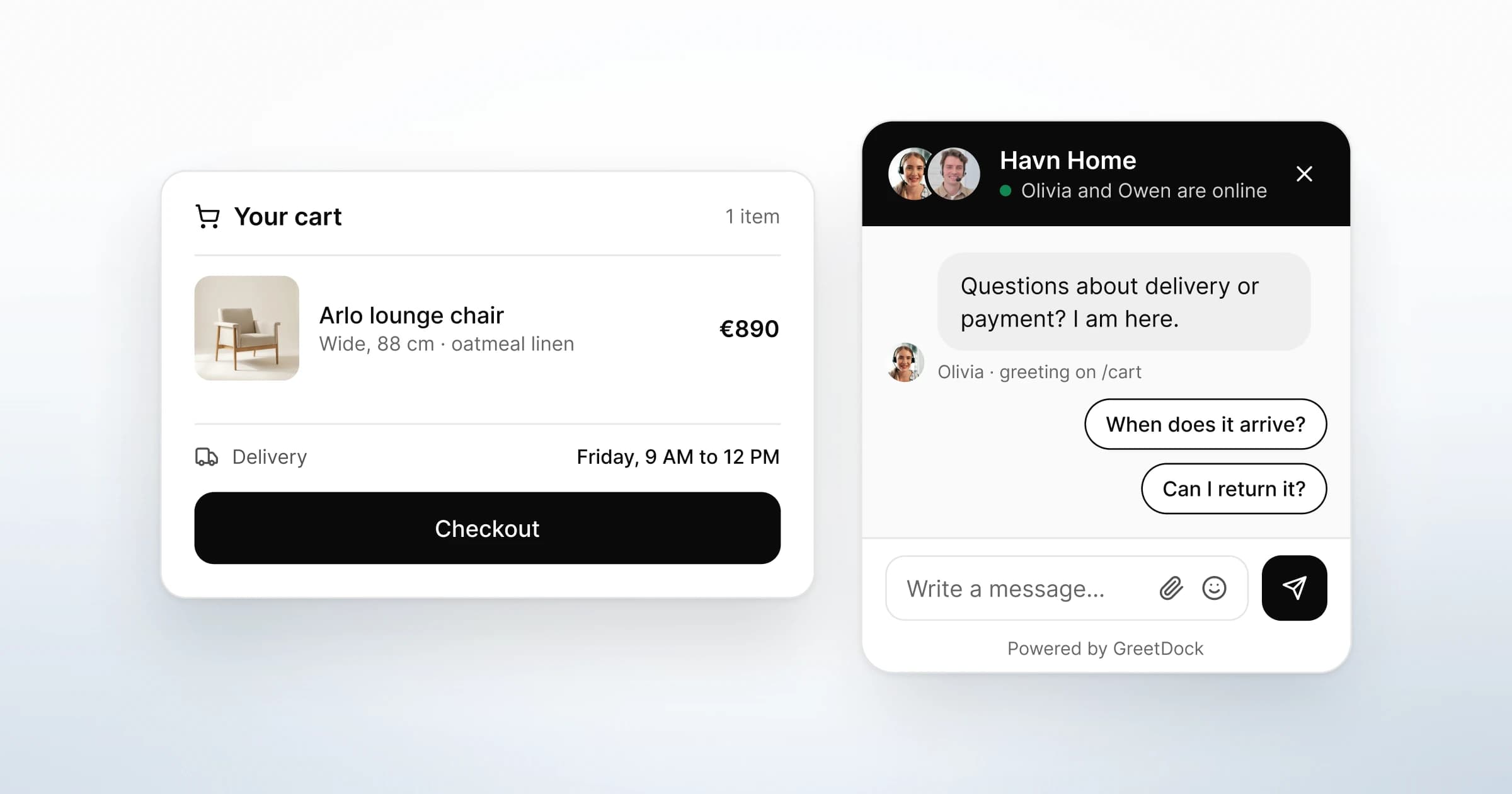
A good widget tells the visitor who will answer before they type. Names and faces of the people online now set a different expectation from a blank "Chat with us" button. On a phone, the panel usually takes the full width of the screen.
The inbox
The inbox is where your team reads and replies. It lists open conversations and, in most tools, the visitors on your site right now.
Context makes chat faster than email. Your teammate sees the page each message was sent from. Better tools add the visitor's earlier visits and questions. "Does this come in oak?" needs no follow-up question when the product page is beside it.
Presence
Presence is the tool's record of who on your team is available. It decides what the visitor sees: a person ready to answer, or a way to leave a message. If presence is wrong, the widget promises a reply nobody is there to give.
When nobody is online
When everyone is away, the widget should stop offering a live conversation. The usual replacement is an offline form: the visitor leaves an email address and a question, and your team replies by email later. The message should still arrive with the page it came from, so the reply can be specific.
What are the benefits of live chat?
The main benefit is timing. Live chat answers a question at the moment it stops a decision, on the page where it came up. A form or an email answers it later, often after the visitor has left.
- The visitor stays put. No phone number to find, no hold music, no inbox to check. They ask and keep reading.
- Your team answers with context. The page, and often the visit history, arrive with the question. Replies can be shorter and more exact.
- One person can hold several conversations. Chat is asynchronous enough that a teammate can keep a few threads going. A phone line takes one caller at a time.
- Every answer is written down. The thread is a record your team can search when the same visitor comes back, or when the same question does.
- You learn what visitors ask. A month of chats shows which pages leave people unsure. Fixing those pages is often worth more than any reply.
Live chat also has costs. Someone has to be online for it to be live, and visitors read "live" as "now". A widget that says "we are here" when nobody is creates the disappointment it was meant to remove. Plan the staffing and the offline route before you plan the greeting.
How does live chat compare with a chatbot, email and phone?
Each channel puts a different cost on the visitor and a different load on your team.
Against a chatbot, the difference is who writes the reply:
| Live chat | Chatbot | |
|---|---|---|
| Who replies | A person on your team | Software, from flows or a model |
| When | While someone is online | Any hour |
| What your team sees | The message and the page it came from | Depends on the tool |
| Best for | Questions that block a decision now | Narrow, repeated questions with one right answer |
| Typical failure | Nobody online, or slow replies | Loops when the question falls outside its script |
Against email and phone, the difference is where the visitor is when the answer arrives:
| Live chat | Email or contact form | Phone | |
|---|---|---|---|
| Who replies, and when | A person, while someone is online | A person, within hours or days | A person, during opening hours |
| Where the visitor is | On your page | In their inbox, later | On the phone, often away from the page |
| What your team sees | The message and the page it came from | What the visitor chose to write | What the caller describes |
| Best for | Questions that block a decision now | Requests that need research or documents | Long or sensitive conversations |
| Typical failure | Nobody online, or slow replies | The visitor has moved on by the time you reply | Queues, and no record unless you keep one |
A chatbot and live chat use the same kind of window with a different writer. A bot answers by itself; in live chat, a person does. The choice is about who is accountable for each reply, which we cover in live chat vs chatbot.
A chat can also become a voice or video call when typing gets slow, without the visitor dialling a number. The section on calls and co-browsing below covers how.
What should you look for in a live chat tool?
Look past the feature list to what happens in the first minute of a conversation, and in the hour when nobody is online.
| Question to ask | Why it matters | A good answer |
|---|---|---|
| How does the widget know who is online? | Presence decides what the visitor is promised | Status per person, and an automatic switch to an offline form when the last person leaves |
| What does your team see beside a message? | Context decides how many questions your team must ask back | The page the message came from, earlier visits and earlier questions |
| What happens out of hours? | Visitors arrive when nobody is in, too | An offline form that keeps the page and replies by email into the same record |
| Can a colleague be consulted or take over? | Questions cross between sales and support | Private notes in the thread, and a handover where the visitor does not have to explain again |
| What does the AI do? | Some tools answer visitors by themselves | A clear statement of whether software or a person sends each reply |
| Can the conversation become a call or a shared page? | Some questions are slow to type | Both, started from the thread, each with the visitor's agreement |
| Can you search past conversations? | Repeat visitors and repeat questions | Search across names, emails and message text |
| Where is the data processed, and under what contract? | Chat threads contain personal data | A named hosting region, a DPA and a published list of sub-processors |
| Does the widget work from a keyboard? | Not every visitor uses a mouse or touch | It meets WCAG success criterion 2.1.1 at least |
On accessibility, WCAG 2.2 sets the bar that "all functionality of the content is operable through a keyboard interface" (W3C, Understanding SC 2.1.1). Test the launcher, the panel and the send button with the Tab and Enter keys.
On data, a chat provider handles personal data for you. Under the GDPR, "processing by a processor shall be governed by a contract" (GDPR Article 28(3)). Ask for the DPA before the trial, not after it. This is not legal advice.
Also ask what the script stores in the visitor's browser when the page loads. If it sets an identifier, your cookie consent tool needs to cover it.
How do calls and co-browsing extend a chat?
Some questions are quicker to say or to show than to type. A call or a shared view of the page handles those inside the same conversation, without a meeting link or a download.

A browser call
A browser call is a voice or video call that runs in the web page, with nothing to install. The visitor's browser asks for permission before it uses the microphone or camera. MDN describes the browser method behind this, which "prompts the user for permission to use a media input" (MDN, getUserMedia).
A call suits a question with several parts, a visitor who is unsure what to ask, or anything where tone matters. The chat should stay open beside it for links and files.
Co-browsing
Co-browsing lets your team see the page the visitor is on, after the visitor agrees, and point at the answer. The visitor keeps the mouse and keyboard. It suits "which option do I pick?" and "where is that setting?", where describing a spot on the page takes longer than pointing at it. Our guide to what co-browsing is covers how it differs from screen sharing and what makes it safe.
Both should start from the chat thread and only with the visitor's agreement. A tool that needs a separate app or a booked meeting for either asks the visitor to leave the page at the moment of the question.
What GreetDock's live chat does
GreetDock is a conversation tool for websites: live chat, browser calls and co-browsing in one thread, answered by your own team. It is in private beta.
The live chat widget shows the names and faces of teammates who are online, in your colours and logo. Its greeting can change by page. When nobody is online, it switches to an offline form automatically. The visitor leaves an email and a message and sees a confirmation with the reply address.
In the GreetDock inbox, a live list shows visitors on your sites now, with their page and how long they have been on it. A teammate can say hi first. Every message carries the page it was sent from. A profile beside the thread shows time on page, visit count and earlier questions. To hand over, a teammate assigns the conversation and leaves a private team note the visitor never sees.

When typing is slow, your teammate offers a voice or video call in the browser from the thread. The visitor taps Accept or Not now, and can join video with the camera off. Calls are recorded only when your team starts recording, and the visitor sees a notice when recording starts.
Co-browsing starts with a request the visitor allows for that page. Your team can point, highlight and draw. It cannot click, type or navigate for the visitor, and password and card fields are hidden. A Stop bar stays on screen for the whole session.
AI reply drafts and call summaries suggest a reply from your knowledge base and summarise recorded calls, and a person reviews and sends every reply. They are switched on for each workspace from 4 November 2026, after notice under our DPA. GreetDock has no bot that answers visitors. Each visitor's chats, calls and files are kept as one record you can search. GreetDock is hosted in the EEA; the details are on our security page.
How to start with live chat on a small team
You can run live chat well with two or three people if you decide a few things first. None of these steps needs new software.
- Pick the pages. Start where questions block a decision: pricing, product pages, checkout or sign-up.
- Decide who is online, and when. Write down the hours someone will answer, and who covers lunch. Presence should match that plan.
- Write one greeting per page. Name the question that page raises, in one sentence. Our guide to live chat scripts and greetings has the wording, and proactive chat covers when to speak first.
- Set the offline route. Decide who answers offline messages the next morning, and by when.
- Test it on a phone. Open the widget on your own site and check that it does not cover your cookie banner, cart or sticky buttons. If it does, move it to the other corner.
- Read a month of threads. List the questions that repeat. Fix the page that causes each one, and keep the answers your team gives most.
What to do next
Before you compare feature lists, run three checks in any trial, ours included:
- Presence. Set everyone on the team to away, and time how long the widget takes to stop promising a person.
- Context. Send a question from a product page as a visitor, and check that your teammate sees that page beside the message.
- The offline route. Leave a message while the team is away, and answer it. Check that the reply reaches the visitor's email and stays in the same record.
If you are weighing a bot against people, read live chat vs chatbot next. To see how GreetDock compares with other tools, with sources, start at the comparison hub. The four-minute product tour shows a chat that becomes a call and a shared page.
GreetDock is in private beta with a free 30-day trial, no card and no automatic charge. If a person-first widget and inbox suit your team, get early access.