What is co-browsing? How it works, and how it differs from screen sharing
Co-browsing shares one web page, with the visitor's agreement, so your team can point at the answer. Here is how it works, where it beats screen sharing, and what to check before you trust it.
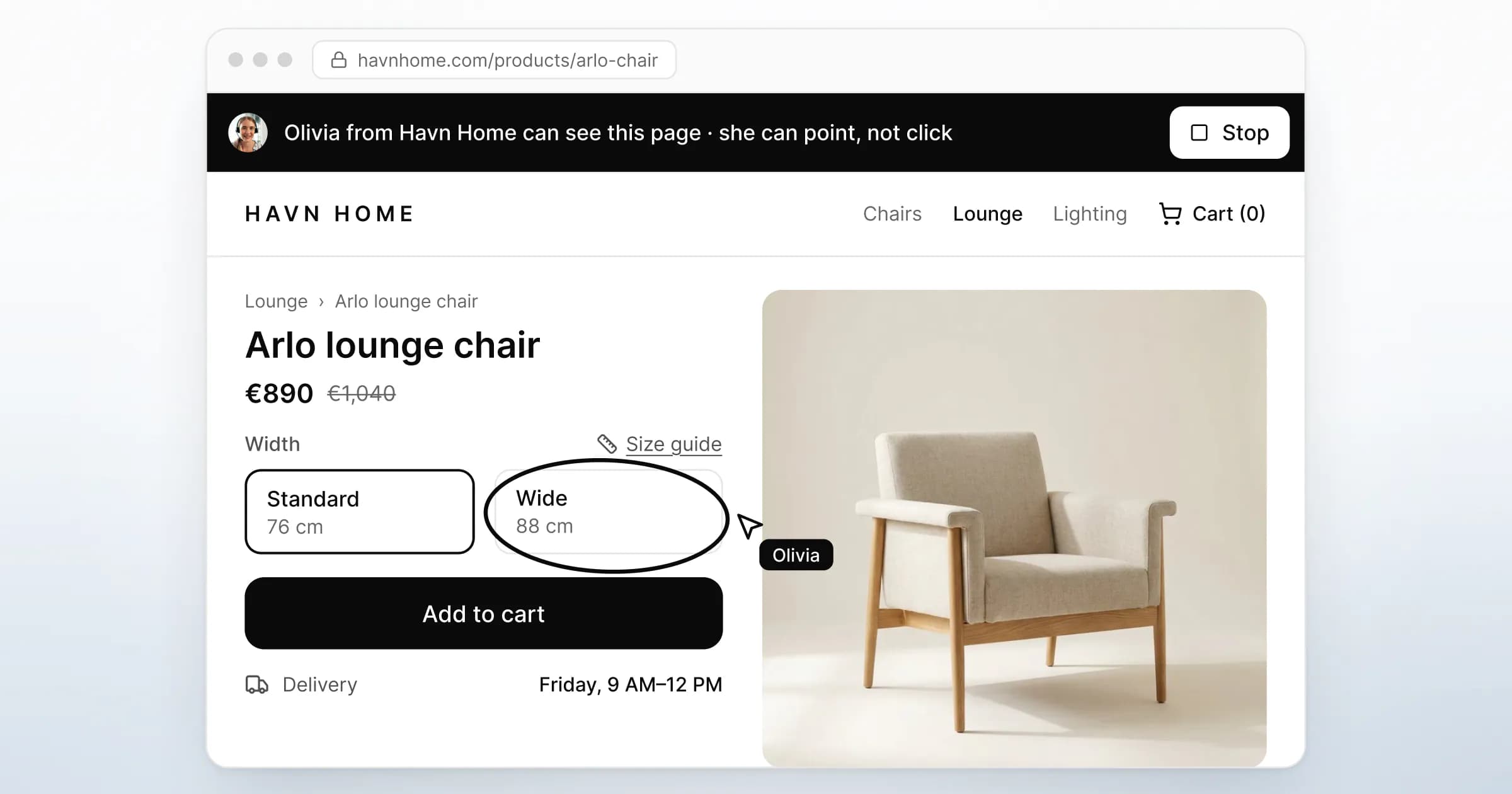
Co-browsing (also written cobrowse or co-browse) lets someone at a company see the web page a visitor is on, live, once the visitor agrees. That person guides the visitor by pointing or highlighting. The visitor stays on their own device and keeps the mouse and keyboard. Only that page is shared, not their screen.
Products sold under the name still differ on what is shared, what the other person can do and what stays hidden. Those three differences decide whether a session is safe to offer.
This guide covers how a session works, how it differs from screen sharing, what makes it safe, and the words your team can use to offer one.
What is co-browsing, and how does a session work?
A co-browsing session has five steps: a request, the visitor's decision, a shared view of one page, guidance on that page, and a stop. Nothing is shared before the second step, and the visitor can end it at any point.
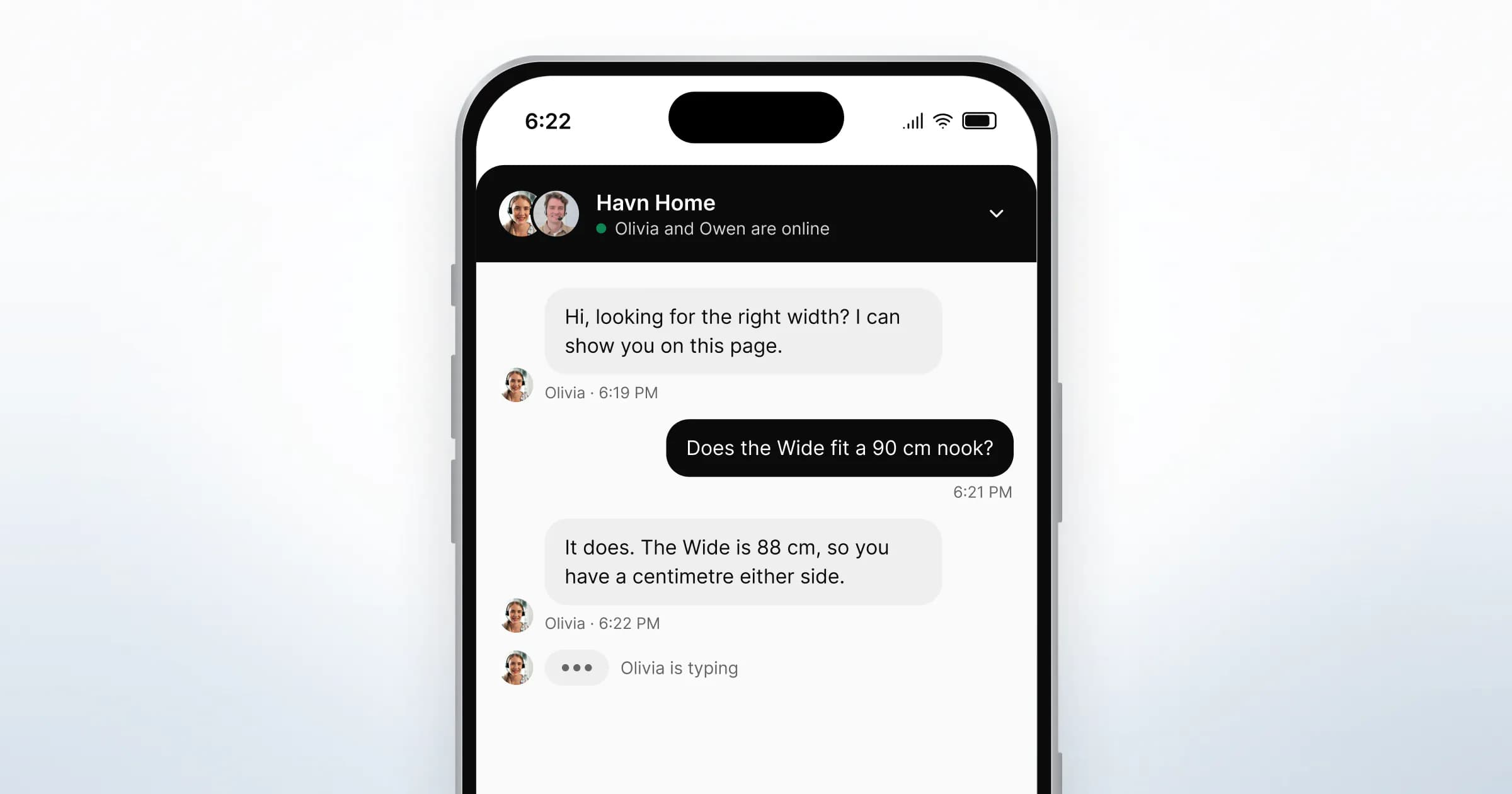
- Someone on your team asks. Usually from a chat that is already going, when describing the next step is slower than showing it.
- The visitor decides. They see who is asking and what that person will be able to do, then allow it or decline.
- The page is shared. Your team sees the page as the visitor sees it, updating as they scroll and type.
- Your team guides. A pointer, a highlight or a quick drawing shows where to look. The visitor clicks for themselves.
- Either side stops. A visible control ends the session, and closing the tab ends it too.

What happens under the hood
Products build the shared view in two broad ways. One copies the structure of the page and sends changes as they happen, which browsers support through APIs such as MutationObserver. The other streams a video of the tab.
A copy of the page structure lets a product leave out specific fields before your team sees them. A video can only blur what it has already captured. Ask any vendor which approach it uses, because the answer tells you where masking can happen.
Co-browsing vs screen sharing: what is the difference?
Co-browsing shares one web page and stays inside the browser. Screen sharing shares a whole surface the person picks: a tab, a window or an entire display. In a browser, screen sharing runs through getDisplayMedia(), which asks the person to select and grant permission to capture "a display or portion thereof".
| Co-browsing | Screen sharing | |
|---|---|---|
| What is shared | One web page on your site | Whatever the person selects: a tab, a window or a screen |
| What it captures | The page itself | Pixels on that surface |
| Notifications and other apps | Not shared | Visible if they appear on the shared surface |
| Hiding single fields | Possible, if the product masks them | Not possible; everything on the surface is captured |
| Who acts on the page | The visitor; some products add a control mode | The person sharing |
| Typical use | Guiding someone through your own site | Showing something outside your site |

When screen sharing is the better tool
Screen sharing wins when the problem is not on your website. A visitor struggling with a spreadsheet, a desktop app or a file on their laptop needs screen sharing, because co-browsing cannot see any of those.
Screen sharing also shows more. A shared display can show an inbox, a chat notification or a document the visitor forgot was open. If the question is about a page on your own site, co-browsing answers it with far less on view.
GreetDock does not offer screen sharing. Co-browsing shares only the tab where the visitor accepted, which keeps the scope to your site.
What can your team do during a session?
In a view-and-point session, your team can see and indicate, and nothing more. The visitor does the clicking, typing and submitting. That keeps every action on the page theirs, which matters most on checkout and account forms.
Some products go further and add a control mode. Once the visitor accepts, Glance's Remote Assist lets an agent "take control of the visitor's browser interface" to navigate, select elements or "fill out form fields" (Glance documentation). Control can be useful for accessibility or long forms. It also means someone else can submit on the visitor's behalf, which is a different promise.
Decide which promise you want to make before you choose a tool. The consent request has to describe it accurately.
Is co-browsing safe?
Co-browsing is as safe as four settings make it: what is in scope, what your team can do, what is hidden, and how easily the visitor can stop. A product that shares one page, allows no control, hides sensitive fields and shows a stop button the whole time is a small, assessable risk. Change any of the four and the risk changes with it.
| Question | The safer answer |
|---|---|
| What is shared? | The current page on your domain only |
| Can your team act for the visitor? | No: view and point only |
| Which fields are hidden? | Passwords, card fields and any field you name |
| How does the visitor stop it? | A control that stays visible for the whole session |
| Is anything stored? | Nothing, unless a separate decision says otherwise |
What field masking means
Field masking hides the value of a form field from the person viewing a co-browsing session. The field itself stays visible, so they can still point at it. Your team sees dots where a card number is. The visitor sees their own number as usual.
Good masking starts with fields a product can recognise on its own. Password inputs are one. Card fields are another, because well-built forms label them with standard autocomplete values such as cc-number and cc-csc. Embedded payment frames from another domain are a third, since the browser's same-origin policy limits what a script on your page can read from them.
Everything else depends on your markup. Customer numbers, account balances, free-text notes and health details look like ordinary text to any tool. Someone who knows your site has to list them.

How to test masking on your own site
Run this before the first visitor sees a request. You need one colleague and a second device.
- List every page where a visitor types something sensitive: sign-up, checkout, account settings, any form that asks for an ID or an amount.
- Open each page as a visitor on the second device, fill the fields with dummy values, and accept a session from your team's side.
- Check what your team's view shows for every field on the list. Anything readable is a finding.
- Repeat after each release that changes those forms.
Do visitors have to agree to co-browsing?
Yes. A visitor should agree to each session, in the page, after being told who is asking and what that person can do. A setting turned on at install is not agreement from the person whose page is shared.
Where consent is your legal basis under the GDPR, Article 7(3) sets a practical test. "It shall be as easy to withdraw as to give consent" (GDPR Article 7, Regulation (EU) 2016/679). For co-browsing, that means a stop control as visible as the allow button. For the lawful basis, the DPA and retention, read GDPR and live chat. It is general information, not legal advice.
How to offer co-browsing in a conversation
Offer a session when describing the next step would take more than two messages. Ask in plain words, say what you will and will not see, and make no fuss if the answer is no.
These lines are a starting point for your team to adapt:
- Asking: "It might be quicker if I see the page with you. I can point, but I can't click or type, and I won't see your card or password fields. Shall I send a request?"
- If they decline: "No problem. Look for the Size guide link just above the width options." Then carry on in chat.
- While sharing: "See my pointer? That's the Wide option. Pick it yourself when you're ready."
- Ending: "I'll stop sharing now. If anything else comes up, I'm still here in the chat."
Two habits help. Ask again on a new page rather than assuming the first yes covers it. And when the visitor reaches a form, say out loud that you cannot see what they type.
When does co-browsing help most?
Co-browsing helps most when the visitor is on the right page but cannot find the right part of it.
- Choosing between options. A shopper unsure which width or size fits. See how online stores use it to point at the size guide.
- Finding a setting. A customer who cannot locate an option in your app. Pointing beats a five-step written explanation, which is the use on support teams.
- Comparing plans. A buyer on the pricing page asking which tier includes a feature.
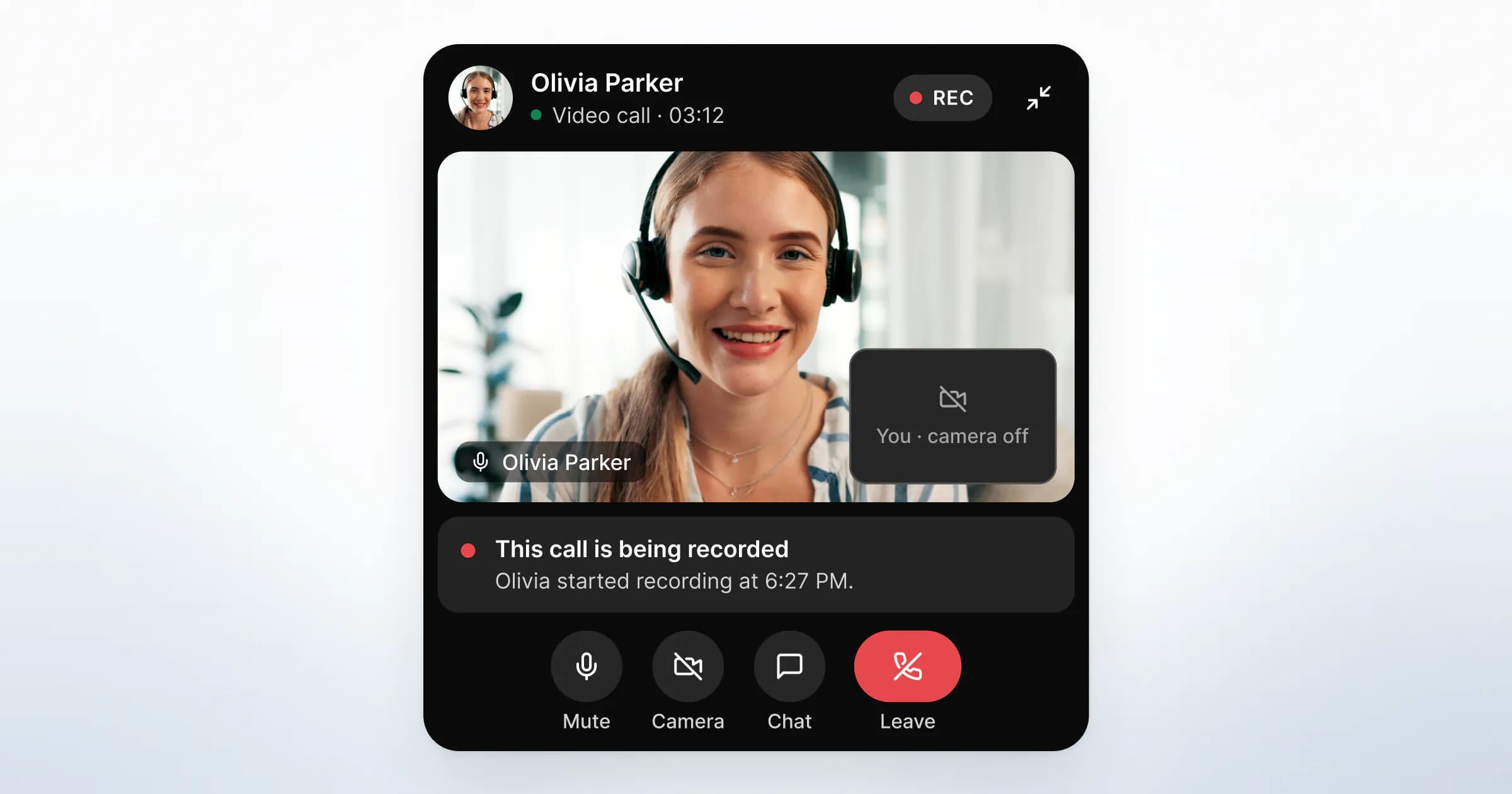
- During a call. Talking through a page while pointing at it. A browser call and a shared page can run together.
It helps least when the answer is a sentence. If a link or a one-line reply solves it, send that.
What GreetDock's co-browsing does and does not do
GreetDock is co-browsing software built on the view-and-point model. Your team asks from the thread, and the visitor sees a request that names the teammate and states what they can and cannot do. Nothing is shared until the visitor taps Allow for this page.
During the session your team has a labelled pointer, a spotlight that dims everything except one element, and a pen whose marks fade. Your team cannot click, type, scroll or navigate for the visitor. Password and card fields are hidden, and other tabs, windows and desktop applications are never shared.
The visitor sees a bar with a Stop button for the whole session, and their choice always wins. Co-browsing can also start during a call, with its own request. Where data is hosted and how it is processed is set out on our security page.

What to do next
Before you offer co-browsing to a single visitor, settle four things in writing.
- Scope. Which pages a session can cover, and whether your team can ever act on the page.
- Masking. The named list of fields to hide, tested on a second device.
- The request text. What the visitor will read, checked clause by clause against what the product does.
- Retention. What, if anything, survives the session, and for how long.
Then see how a browser call from the chat fits beside a shared page. If you are comparing tools, the comparison pages set out what each one offers, with sources. The four-minute product tour includes co-browsing with the visitor's consent.
GreetDock is in private beta, with a free 30-day trial, no card and no automatic charge. If view-and-point co-browsing fits how your team works, get early access.